You are here: TSM SmartClient Menu Options – Interfaces > Profile Maintenance
_________________________________________________________________________________________________
Profile Maintenance
Interfaces are intended to load data into TSM. That data could be as simple as adding a new participant to TSM, or adding multiple dividend transactions for all participants across all Plans on the platform. To add the data to TSM, the user must create a file to upload into TSM and the format of that file is held within the Profile Maintenance screen. The Profile Maintenance screen is used to either lookup current setup of an Interface, or to establish a new file setup for that existing Interface.
Once a file is created, the TSM user must upload the file through the File>Upload process, and then typically uses the Conversion File screen to finish the processing of the file.
How to access the Profile Maintenance screen
Click the Interfaces menu, then click Profile Maintenance. The Profile Maintenance screen appears.
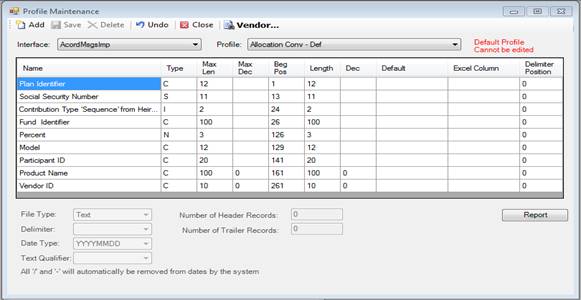
How to lookup an existing interface profile on the Profile Maintenance screen
Use the following to lookup the current format of an existing interface profile using the Profile Maintenance screen.
1. Click Interfaces then Profile Maintenance. The Profile Maintenance screen appears.
2. Select the Interface you want to view.
3. Select the Profile for that Interface that you want to view. The existing format displays in the fields below.
How to create a new Profile for an existing Interface on the Profile Maintenance screen
Use the following to create a new Profile for an existing Interface using the Profile Maintenance screen.
1. Click Interfaces then Profile Maintenance. The Profile Maintenance screen appears.
2. Use the drop down next to Interface to select the Interface you want to create a Profile for.
3. Click Add. The New Interface Profile screen appears.
4. Type the name that you want to assign to the new profile in the Profile Name field.
5. Choose the File Type for that Profile you are creating.
6. Click one of the following options:
a. Copy of Current Profile with Blank Values, or
b. Copy of Current Profile -if this option is chosen, it will also automatically pre-fill the File Type that is on the default profile.
7. Click OK. You are returned to the Profile Maintenance screen.
8. Choose a Delimiter, if applicable. This field will only be applicable if you had chosen the File Type to be Delimited.
9. Choose the Date Type, if applicable.
10. Choose a Text Qualifier, if applicable. This field will only be applicable if you had chosen the File Type to be Delimited.
11. Enter the Number of Header Records or Number of Trailer Records, if applicable.
12. Enter any of the following for each field Name, if applicable:
a. Beg Pos- only used if text or delimited
b. Length- only used if text or delimited
c. Excel Column- only used if Excel
d. Delimiter Position- only used if delimited
e. Default
13. Click Save once all applicable choices have been made for the new Profile. A message appears indicating your changes were saved.
14. Click the Report button if you want to be provided with a copy of details of the format of the Profile.
Explanation of Fields
|
Field Name |
Field Description |
|
Interface |
The Interface is essentially the function or task that you are uploading. For example, CONV-PART is intended to upload a list of participant indicative (or census) data into TSM. |
|
Profile |
The format of the Interface you are using. There should always be a default (Def) profile provided, then any other new profiles that are added are named by whomever added the profile. The default profile cannot be changed. |
|
Name |
The name of the field. |
|
Type |
The type of data (N=numeric, D=date, S=ssn, C=alphanumeric, L=logical, I=integer) that is allowed for that field. |
|
Max Len |
Maximum length of the field. |
|
Max Dec |
Maximum decimals allowed in that field, if applicable. |
|
Beg Pos |
Beginning Position. This field only used if File Type is Text. |
|
Length |
Total number of characters in that field, if File Type is Text. |
|
Dec |
Decimal positions allowed. |
|
Default |
The entry that will always have the same value in that field, regardless of what is on the file that is uploaded. |
|
Excel Column |
The column on the file for this field, if the File Type is Excel. |
|
Delimiter Position |
The delimiter position if the File Type is Text or Delimited. |
|
File Type |
This is the file type that was chosen when the new Profile was added. The entries are either Excel, Text or Delimited, and cannot be changed for an existing default profile. |
|
Delimiter |
This field contains the various delimiter options when the File Type is Delimited. The delimiter is used to separate fields in the import file. |
|
Date Type |
The format of any date entries made within the file. |
|
Text Qualifier |
The qualifier for the text when Delimited or Text is used. |
|
Number of Header Records |
Number of heading/lines at the top of the file to ignore. |
|
Number of Trailer Records |
Number of trailer/lines at the bottom of the file to ignore. |
|
Report |
When you click this button it provides you with details of the format/layout of the profile/interface that you have selected. |