Contribution Summary Register
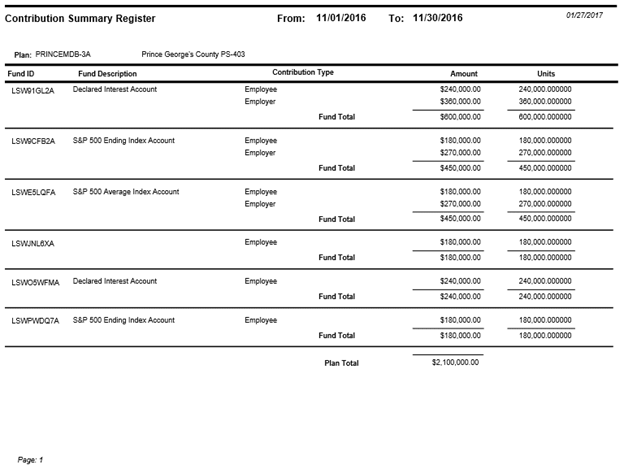
Use the Contribution Summary Register option to view a breakdown of contributions processed during a specific time period by fund allocation, type, dollar amount, and number of units/shares. You can generate this report for one Plan or all Plans.
How to Access the Contribution Summary Register Window
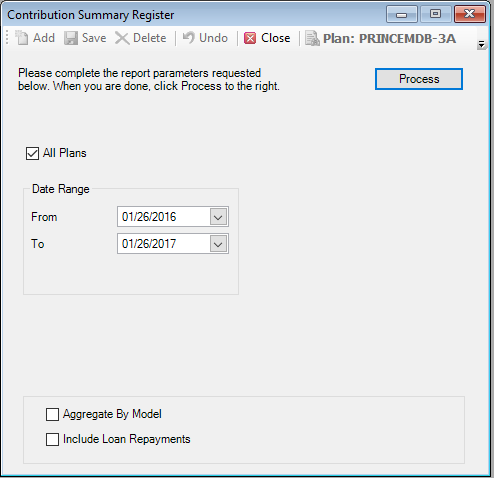
On the Reports menu, point to Contribution Reports, and then click Contribution Summary Register. The Contribution Summary Register window displays.
How to create a Contribution Summary Register Report
1. Select the Plan for which you are generating the report.
Or
Select the All Plans check box to generate a report for all Plan participants in all Plans.
2. Enter the Date Range for the transactions you want to include in the report. Note: If you are running the report for All Plans, the date range is a one month period.
3. Select the Include Loan Repayments check box to include loan repayments in the register.
4. When you are done, click Process.
Explanation of Fields
|
Field |
Description and Requirements |
Required / Optional |
|
Date Range |
Enter the date range which in the contributions were made. You can type the date using MM/DD/YYYY format or use the calendar. The calendar defaults to current date. Enter a date in both the From and To fields. |
Required |
|
Aggregate By Model |
|
Optional |
|
Include Loan Repayments |
Select this check box to include loan repayments in the register. |
Optional |
Contribution Summary Register Report Example