How to Emulate a Participant
The following information describes the steps a user must follow in order to emulate a participant in TSM SmartClient for customer support purposes.
(To view a video tutorial, please click the following link: Video Tutorial - Participant User Emulation)
- The user determines the environment (i.e QA, UAT or PROD) and database (i.e. FF, TSA, etc.) the advisor/agent is using. Click on the following link to view the current list of environments and corresponding databases.
IPX-URLs-by-Environment / IPX URL's by Environment
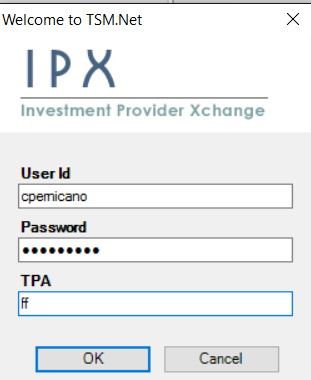
- Once the correct environment and database are determined, the user logs in to the corresponding version of TSM SmartClient.
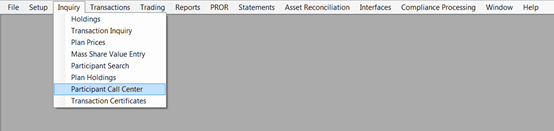
- The user selects Inquiry > Participant Call Center from the top menu.
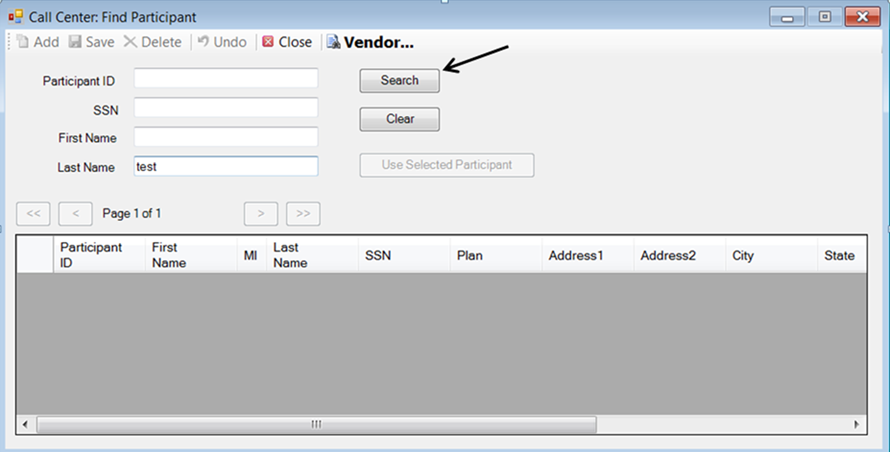
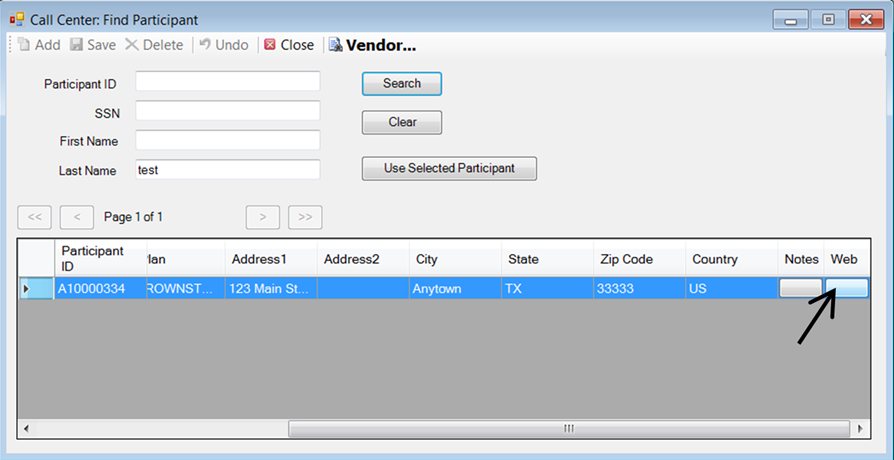
- A search window opens. The user enters any of the following information for the participant they want to emulate and then clicks <Search>:
- Participant ID
- SSN
- First Name
- Last Name
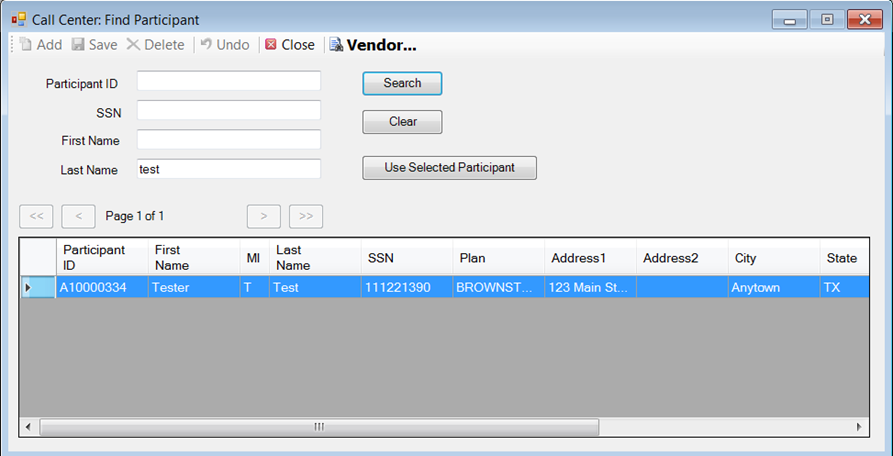
- All participants that fulfill the specified search criteria will now be listed. If more than one participant is listed, the user selects the correct participant by highlighting the row.
- The user then scrolls all the way to the right and clicks <Web>.
This launches the user's default internet browser and redirects the user to the participant's account.
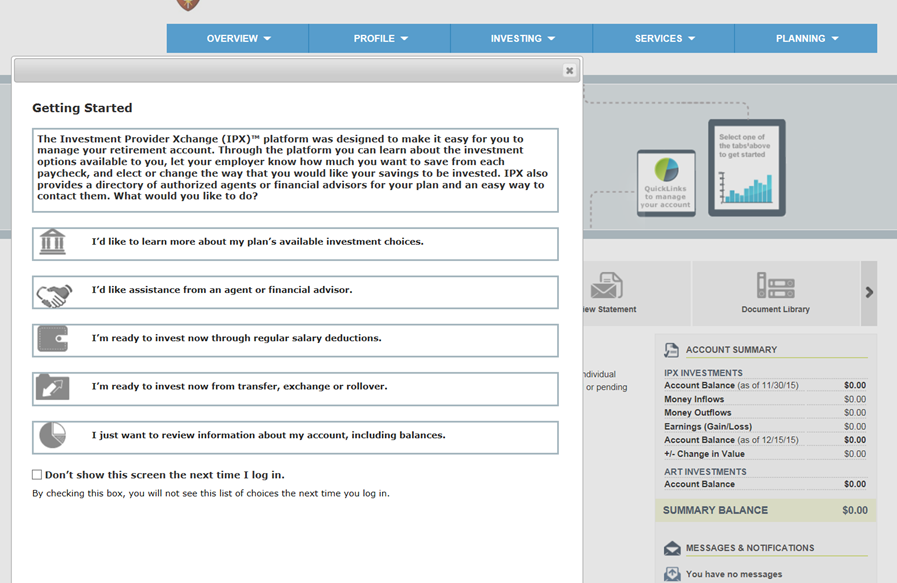
The user is now logged in as the participant and can perform tasks on the participant's behalf.