How to Manage a Participant’s Credentials
This document provides instructions on the following processes:
· Unlocking a Participant’s Account
· Resetting a Participant’s Password
·
Resetting a Participant’s Security
Questions/Answers
- The administrator determines the environment (i.e QA, UAT or PROD) and database (i.e. FF, TSA, etc.) the participant is using. Click on the following link to view the current list of environments and corresponding databases.
IPX-URLs-by-Environment / IPX URL's by Environment
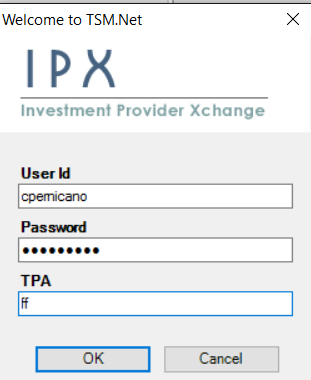
- Once the correct environment and database are determined, the administrator logs in to the corresponding version of TSM SmartClient.
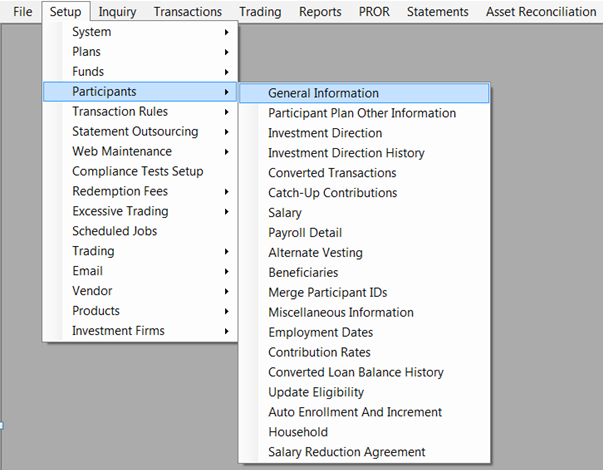
- The administrator selects Setup > Participants > General Information.
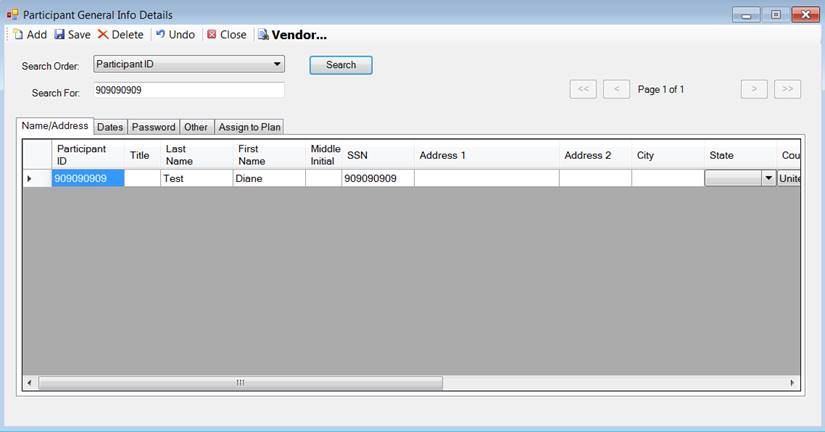
- To search for the participant, the administrator selects either "Participant ID" or "Last Name" from the drop down menu next to "Search Order:", enters the corresponding information in the "Search For:" field, and clicks <Search>.
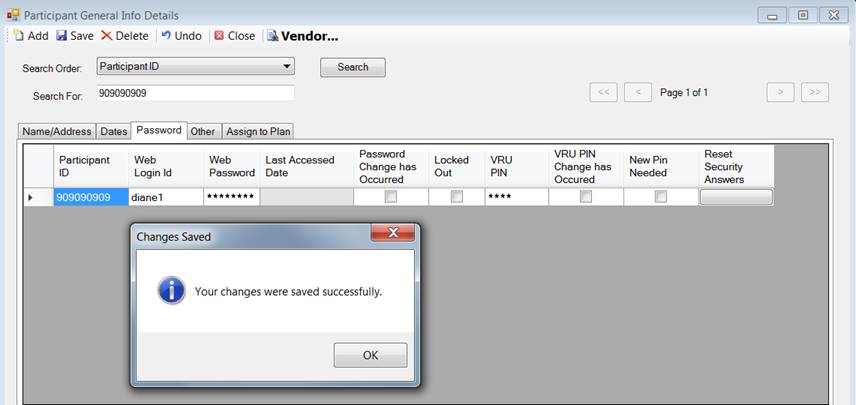
- Once the correct participant is found, the administrator then clicks on the "Password" tab for that participant.
- To reset a participant's password, the administrator clicks on the value in the "Web Password" column and enters the new value.
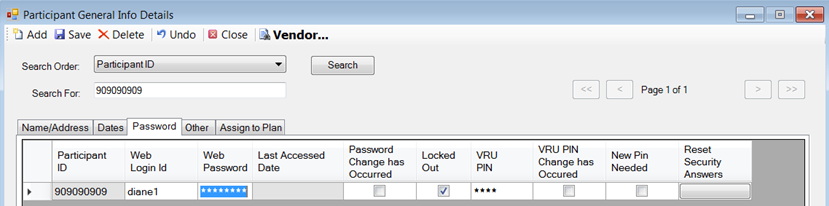
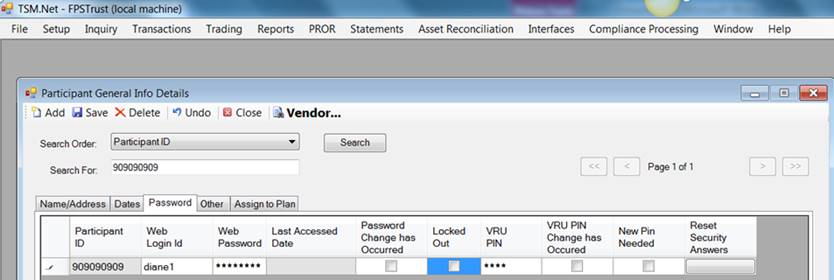
- To unlock a participant's account, the administrator clicks on the check marked box in the "Locked Out" column to uncheck it.
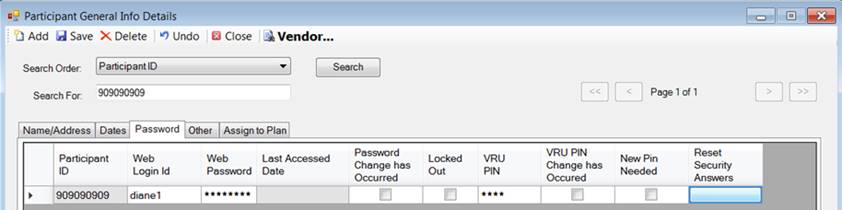
- To reset a participant's security answers, the administrator clicks on the box in the "Reset Security Answers" column. Note: When a participant's security answers are reset, they will be prompted to select security questions/answers the next time they log in.
- When
all changes are complete, the administrator clicks the
 icon in the upper left corner of the
screen.
icon in the upper left corner of the
screen.
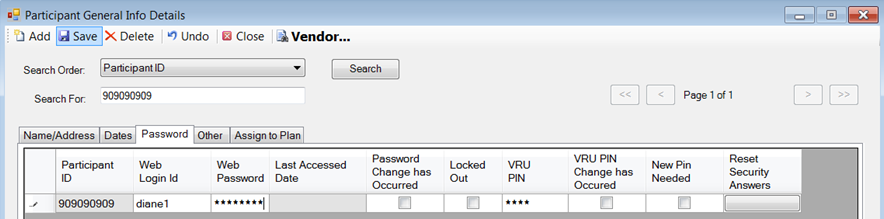
The changes have
now been successfully saved.