How to Manage an Agent’s/Advisor’s Credentials
This document provides instructions on the following processes:
· Unlocking an Agent’s/Advisor’s Account
· Resetting an Agent’s/Advisor’s Password
- The administrator determines the environment (i.e QA, UAT or PROD) and database (i.e. FF, TSA, etc.) the advisor/agent is using. Click on the following link to view the current list of environments and corresponding databases.
IPX-URLs-by-Environment / IPX URL's by Environment
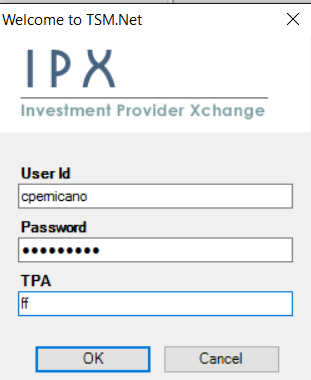
- Once the correct environment and database are determined, the administrator logs in to the corresponding version of TSM SmartClient.
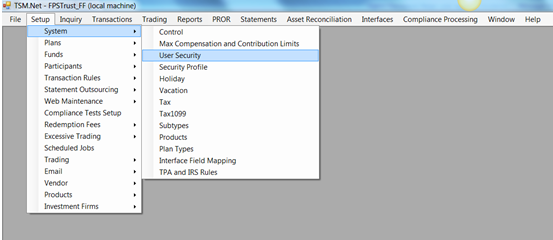
- The administrator selects Setup > System > User Security.
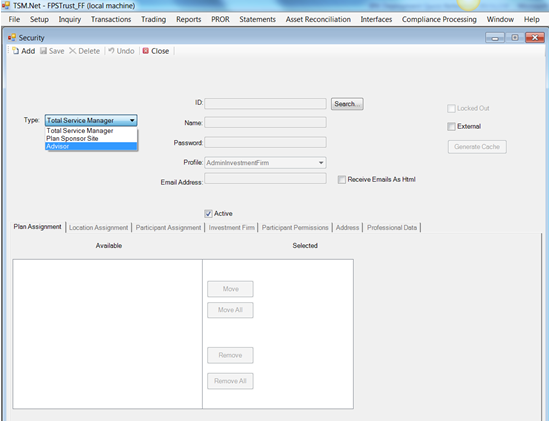
- A Security screen will open, and the administrator will select "Advisor" from the "Type:" drop down menu.
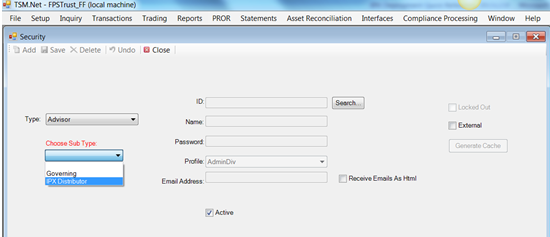
- The administrator then selects "IPX Distributor" from the "Choose Sub Type:" drop down menu.
- The administrator clicks <Search...> to search for the advisor/agent in the database.
The administrator finds the advisor/agent either by:
a) Scrolling down the list and clicking on the agent, or
b) Entering the
advisor's/agent's User Id or User Name value in the "Search For:" field and clicking <Search>.
Note: The value entered in the "Search For:"
field must correspond with the Search Order selected (i.e. User Id or User
Name).
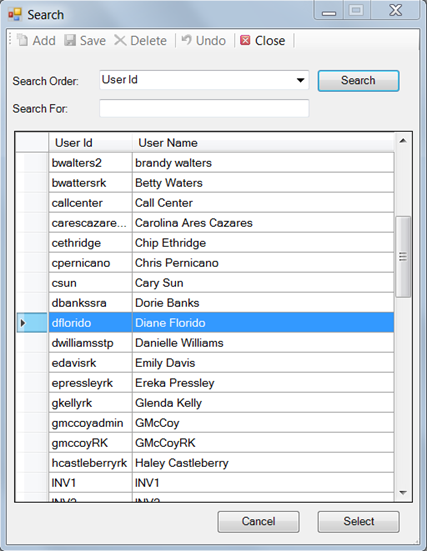
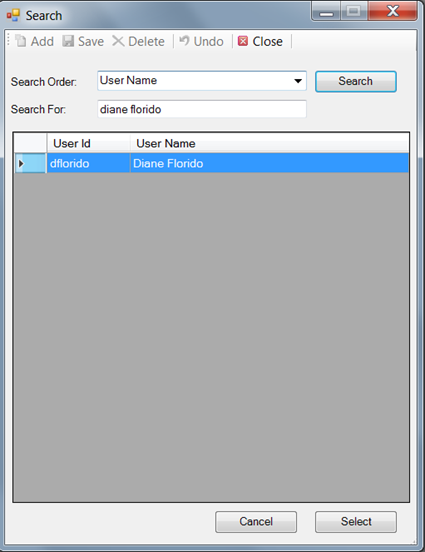
- After the correct agent/advisor is highlighted, the
administrator clicks on <Select> and a screen with the
agent's/advisor's information opens.
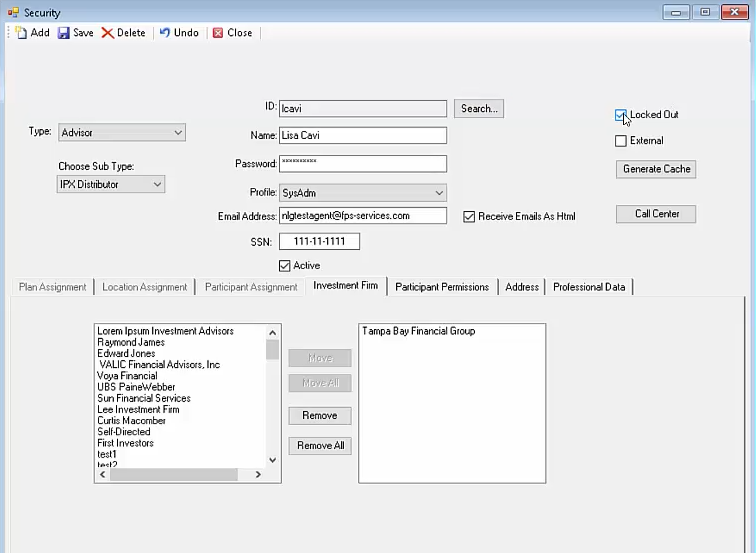
- If the agent/advisor is
"Locked Out" of their account, the "Locked Out" box will
be checked. To unlock the
agent's/advisor's account, uncheck the "Locked Out" box and
click the
 icon in the upper left corner of the
Security screen.
icon in the upper left corner of the
Security screen.
- If the agent's/advisor's
password needs to be reset/changed, then the administrator makes the
appropriate changes to the "Password:" field and then clicks the
icon in the upper left corner of the
Security screen.
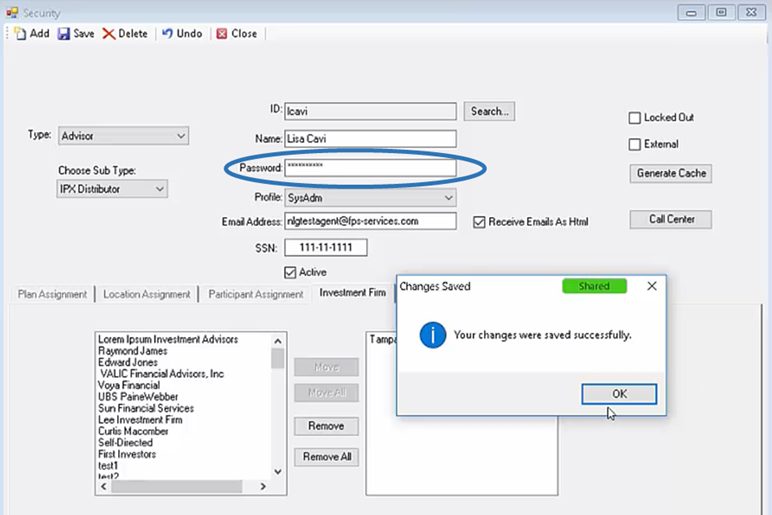
The agent/advisor should now be able to access their account.