How to Update an Existing Salary Reduction Agreement (SRA)
The following are the instructions for updating an
existing SRA in TSM SmartClient.
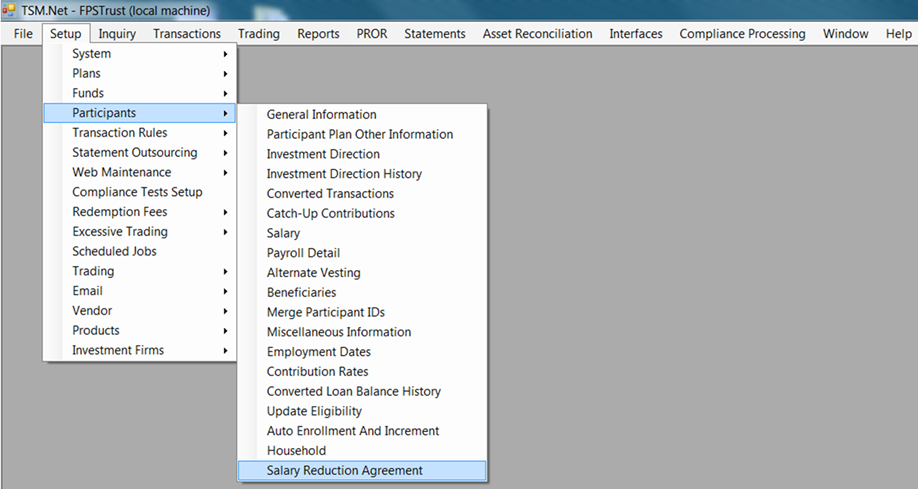
1. Click on Setup > Participants > Salary Reduction Agreement
2. Set the 'Save As Date' to the date you want the SRA to be effective for. The value must be the current date or a future date.
3. Change the 'Total SRA $' / 'Total SRA %' to the total requested.
4. Modify the dollars/percentages of the product allocations until the total of all the individual allocations equals the amount specified in the 'Total SRA $' / 'Total SRA %' field.
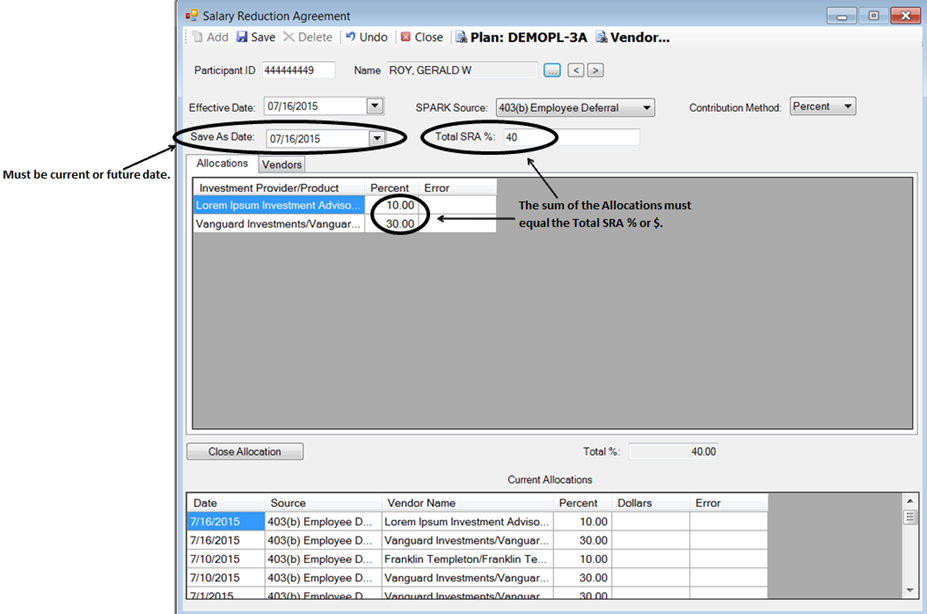
5. Click <Save> in the upper left hand corner of the SRA screen.