You are here: TSM SmartClient Menu Options – Interfaces > Exports
_________________________________________________________________
Exports Menu
The Exports menu provides access to export data from TSM into report format and contains the following options:
Plan Extract
Transactions Extract
Form 1099 Extract
Deconversion Extract
5500 Extract
Plan Demographics Extract for MSCS APR
Fund Redemption Fees and ETR Extract
Census Request Extract
Create MStar Fund Universe
IRS 1220 Extract
How to access reports via the Exports menu
Click the Interfaces menu, then Exports, then click one of the exports you want to view.
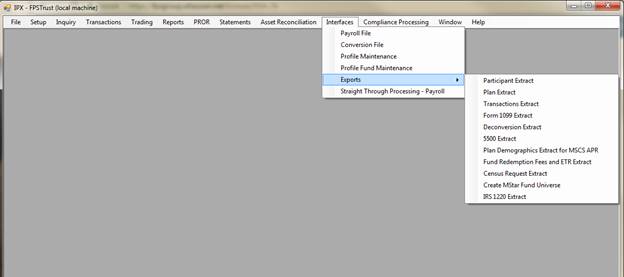
Description of Exports
Extracts from TSM could be available by participant, by Plan, and some are available across all Plans. In addition, almost all exports are available in text format, and some are available in Excel format. The following is a description of the used Exports.
|
Export |
Description |
|
Participant Extract |
A report by participant, by Plan, or across all Plans that provides participant specific data such as mailing address, hire date, account activity, date of birth, holdings, beneficiaries, contribution elections, loans, etc. |
|
Plan Extract |
This export provides data stored on all of the tabs on the Plan screen, which is found in TSM under Setup>Plan>Plan. |
|
Transactions Extract |
A report by participant, by Plan, or across all Plans that provides transaction data for a specified date range. This can include the type of transaction, product, model, fund, CUSIP, dollar amount, number of shares, source of money, etc. |
|
Form 1099 Extract |
An extract of data that can be used for 1099 reporting for a given year. |
|
5500 Extract |
An extract of yearly data that could be used for 5500 reporting. |
|
Plan Demographics Extract |
Available for year-end reporting of demographic information for a Plan or list of Plans. |
|
Fund Redemption Fees |
Provides individual fund redemption fee and trading restriction information in report format, for all funds, for a specified date range. |
|
Create MStar Fund Universe |
The Morningstar option only uses two different reports at this time: - Master Fund Universe – this report shows all funds that are currently setup in TSM, and is used to create the file that is sent to Morningstar when a Morningstar update is needed for TSM. - All Available Master Fund Data – this extract is used to research fund information of funds that are currently setup in TSM. |
|
IRS 1220 Extract |
An extract of yearly data that could be used for 1220 reports. |
How to request a report via the Exports menu
Use the following to create an extract report from the Exports menu.
1. Click Interfaces, Exports, then any of the export options you want to view. The report screen appears. Most screens have the Inclusion Criteria, Output Options and Plans tabs.
2. Select the data on the Inclusion Criteria tab you want to view, if applicable. This may include participant name/ID or all participants, as-of or date ranges, sort orders, fund, etc.
3. Choose the format for output on the Output Options tab, if applicable.
a) Name the report in the Customized Name For Extract Files field, if available. When the report is displayed in the Job Queue you will be able to easily find the report you created by the name you gave the report.
b) Choose the Type of Output (Text, Excel, etc). Some reports are only available in text format, and some reports allow you to create the extract in Excel.
c) Indicate if you want column headers, if there should be a delimiter, and if there should be a text qualifier, if applicable.
4. Choose the Plan(s) the extract should apply to from the Plans tab, if applicable.
5. Choose the data order from the Data Layout tab, if applicable. This option is not available on most extracts.
6. If you chose the MStar extracts, you must click on one of the Morningstar files you want to view.
7. Click the Extract button, if applicable. You receive a message that your report will be located in the Job Queue for you to view once the report is successfully created.
8. Find your extract report in the Job Queue.